Item Line Operations
While the transaction is unfinished it is still possible to change the item line.
|
|
|
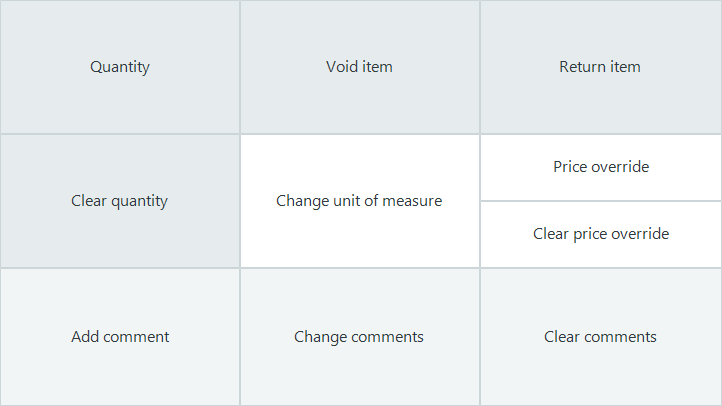
 Set Qty
A new quantity can be set to a sales item.
The Button properties has an optional parameter.
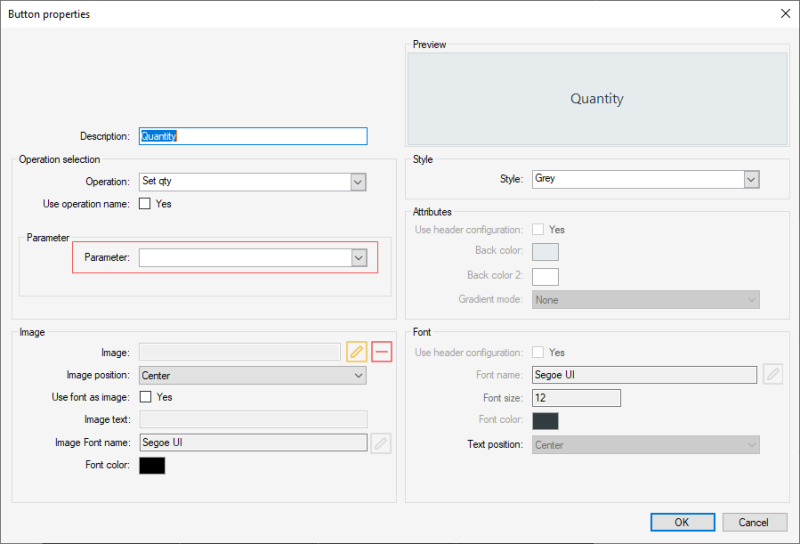
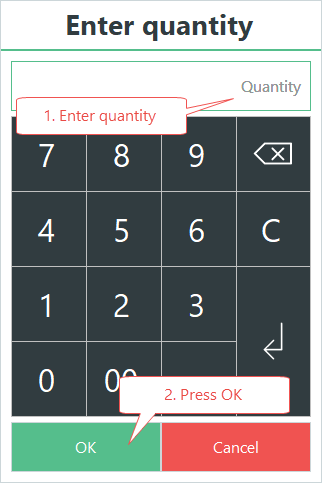
If the parameter is zero or empty, by selecting the item line and pressing the Set Qty button an input window is displayed. Type in the new quantity and press enter or OK.
If the parameter is a negative or positive number, for an example +1 or -1, by selecting the item line and pressing the Set Qty button the item qty will increase or decrease according to the parameter value inserted. In demo data this operation is used for the following buttons.
Clear Qty
This operation sets the quantity of a sales item to one. For return items the quantity is set to -1.
Void Item
Void a line that is in a transaction. Select the item line and press the Void Item button.
The receipt panel shows the void action. The voided item line is not printed on the receipt but it is logged into the system. The voided line is displayed with a strike-through line. When an item is voided the transaction balance is updated.
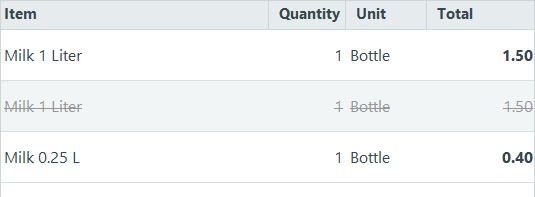
To change a voided line into a sales line, do the same again. Using operation Void item for a voided line takes the strike through out of the line and the item becomes a normal sales line again.
Return Item
This operation changes the POS mode so that the next item sold has a minus quantity. The mode will then automatically change to sales mode after one item has been sold.
To return another item, use this operation again. Operation Return Transaction is different to a Void because it allows you to return a transaction that has already been sold.
Change unit of measure
Changes the unit of measure of an item that is already in the transaction.
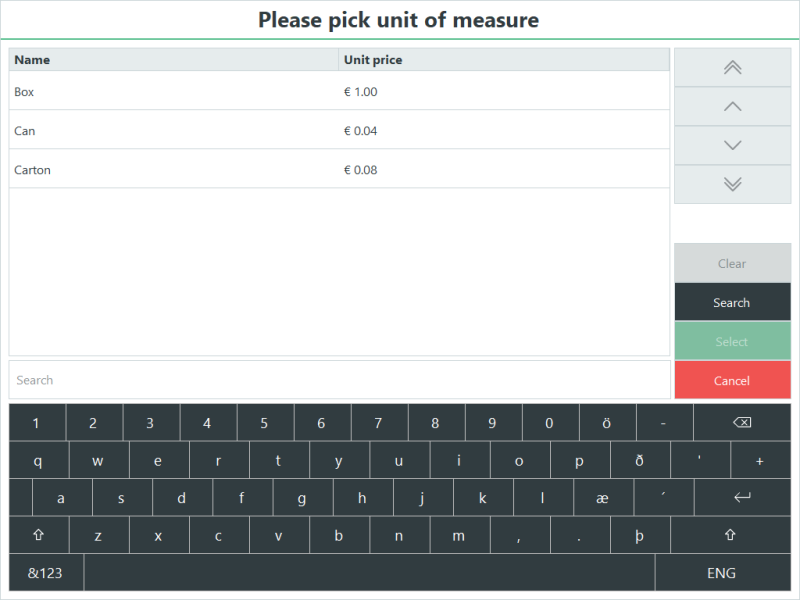
Select the item and press the Change unit of measure button. Select the new unit of measure available for the item and press Select.
Price Override
Changes the price of an item that is already in the transaction.
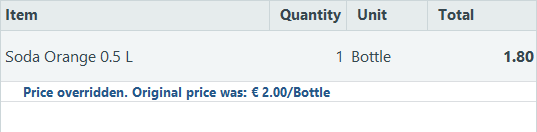
Select the item and press the Price Override button. Enter the new price. The old price is overridden and a new price is shown.
Add Comment
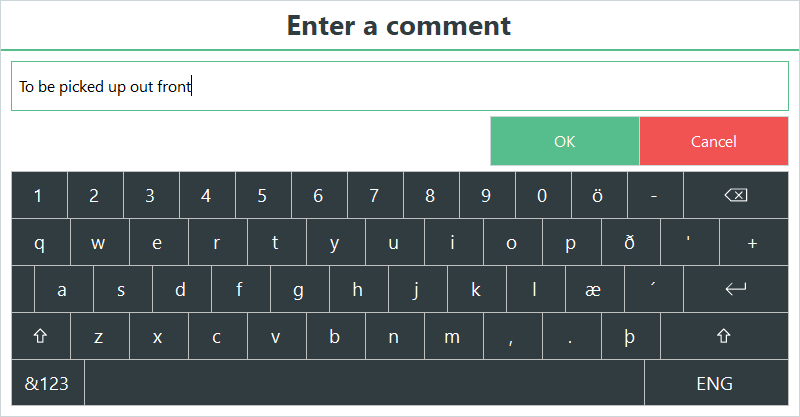
Add a comment to an item. Select the item line and press the Add Comment button.
Type in the comment and press Enter.
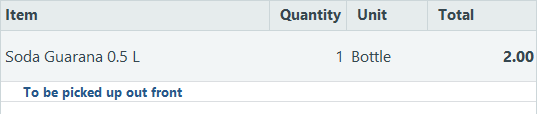
An example of item line with a comment:
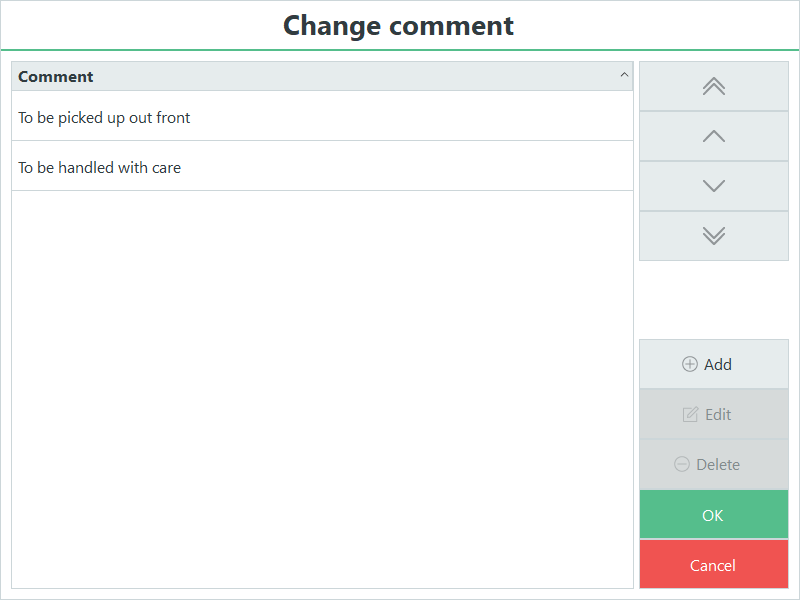
Change Comments
Change an existing comment. Select a comment from the list to change and press edit. New comments can also be added or existing comments deleted. Press OK when you want to save the changes.
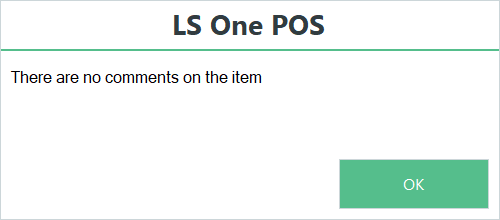
If no comment exists, an error message is displayed.
Clear Comments
Clear a comment on an item.
Select an item line and press the Clear comments button. All comments will be deleted.
| Updated: | June 2020 |
| Version: | LS One 2020 |

